Curator for Q-SYS Installation & Reference
v1.1.2 · QDS 10.1+ Back to product page
Installation & Reference

Q-SYS plugin,
documented for installers.

Every plugin property, every Control Pin, every run-time behavior, laid out for AV professionals deploying the Activaire Curator plugin to a Q-SYS Core. Watch the install video below or jump straight to a topic from the sidebar.

Plugin v1.1.2 Q-SYS Designer 10.1+ Streams up to 128 Cached tracks up to 200
Install video · QDS 10.1+
01Getting Started

About this guide.

This is the complete reference for the Activaire Curator plugin for Q-SYS, version 1.1.2, compatible with Q-SYS Designer 10.1 and higher. It is intended for AV professionals integrating the plugin into a Q-SYS design and deploying it to a Core.

The guide is structured to mirror how the plugin is actually used. Design Time covers the properties exposed on the plugin's Schematic Element, configured before deployment. Control Pins documents the read/write surface for every screen. Run Time traces the plugin's behaviour on a live Core, page by page. Event Log Reference decodes the messages logged to Q-SYS Core Manager, and Troubleshooting closes with the disk-space math and the escalation playbook.

Use the search bar above to jump directly to a property, an event code, a folder name, or a screen behaviour. Use the sidebar for a structured walk-through. Print the page if you need a hard copy on site, the print stylesheet drops the chrome and keeps the substance.

02Design Time

Plugin properties.

Every property exposed by the plugin's Schematic Element, with type, valid range, default value, and behaviour. Properties marked with an Observation interact with other settings, review those notes before deploying to a live Core.

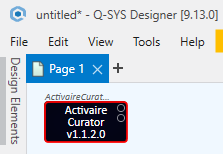
The plugin's Schematic Element after dragging it onto a Schematic Page.
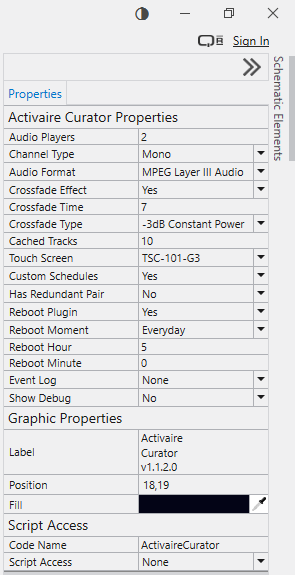
The full Properties panel, every property covered in this section.
01

Audio Players

Number

Range 1 – 128
Default 2
Audio Players validation: the value must be a number between 1 and 128.

Number of Audio Player components embedded in the plugin.

The "Audio Players" property is a number between 1 and 128. It stands for the number of Audio Player components embedded in the plugin. The initial value is 2, which means that the plugin initially incorporates only 2 Audio Players, which can be inspected when choosing "Check Design..." from the File menu.

The initial number of Audio Pins of the Schematic Element matches this value. The number of Audio Player components that the plugin uses changes accordingly, and so does the number of its Audio Pins, upon incrementing or decrementing the value of this property.

Audio Player Tracks indicator at the default value of 2.
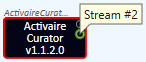
Schematic Element with 2 Audio Pins (Stream #2 visible).
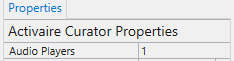
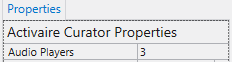
Properties panel: Audio Players incremented to 3.
Audio Player Tracks indicator updates to 3 Tracks.
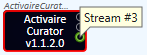
Schematic Element with 3 Audio Pins (Stream #3 visible).
Properties panel: Audio Players decremented to 1.
Audio Player Tracks indicator at 1 Track.
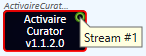
Schematic Element collapsed to a single Audio Pin.
02

Channel Type

Enum
Range Mono · Stereo
Default Mono
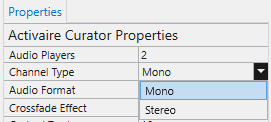
Channel Type dropdown, Mono or Stereo.

Configures the channel type of the embedded Audio Tracks.

The "Channel Type" property is an enum consisting of two choices: Mono and Stereo. "Mono" is the default. This property configures the channel type of the embedded Audio Tracks to be either Mono or Stereo.

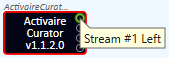
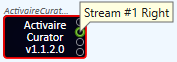
When the "Stereo" choice is selected, each stream of the plugin will get 2 output Audio Pins, for the left & right channels of that stream. The "Check Design..." inspector will then show a doubled number of Audio Player Tracks, since each channel is using such a track.

Stream #1 Left Audio Pin (Stereo channel).
Stream #1 Right Audio Pin (Stereo channel).
Audio Player Tracks doubled to 4 Tracks under Stereo.
03

Audio Format

Enum
Range MPEG Layer III Audio · MPEG-4 Audio
Default MPEG Layer III Audio
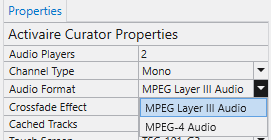
Audio Format options, MPEG Layer III or MPEG-4.

The audio file format used for downloaded tracks.

The "Audio Format" property is an enum with two options: MPEG Layer III Audio (.mp3) and MPEG-4 Audio (.m4a). "MPEG Layer III Audio" is the default. This property controls what format the plugin uses for tracks.

The .m4a format was supported until QDS v9.10.*, but since QDS v9.12.* onwards, support for the .m4a format was removed. The plugin includes the possibility of setting this format too, for sites that still use an older QDS version, because the .m4a format assures a better compression than the .mp3 one (about 3× smaller).

04

Crossfade Effect

Boolean
Range Yes · No
Default Yes
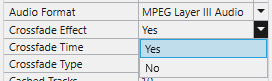
Crossfade Effect dropdown, Yes or No.

Enables or disables crossfade between tracks.

The "Crossfade Effect" property is a boolean value which enables/disables the crossfade effect between tracks. Its default value is "Yes".

This property also controls the visibility of two other properties, "Crossfade Time" and "Crossfade Type", which appear when "Crossfade Effect" is set to "Yes" and disappear when it is set to "No".

05

Crossfade Time

Number
Range 1 – 100 (seconds)
Default 7
Crossfade Time validation: value must be between 1 and 100.

Length of time the crossfader takes to fade between channels.

The "Crossfade Time" property is a number between 1 and 100 and it controls the length of time, in seconds, it takes the embedded Crossfader to fade from one channel to the other. The default value is 7.

This property is only visible when "Crossfade Effect" is set to "Yes".

06

Crossfade Type

Enum
Range -3dB Constant Power · -6dB Constant Gain
Default -3dB Constant Power
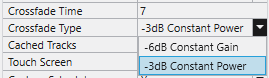
Crossfade Type, -3 dB Constant Power (preferred) or -6 dB Constant Gain.

Crossfade summing curve.

The "Crossfade Type" property is an enum with two choices: "-6 dB Constant Gain" and "-3 dB Constant Power". "-3dB Constant Power" is the default value.

With -6 dB constant gain type selected, the embedded Crossfader sums the input signals with a constant combined gain. The midpoint gain is -6 dB. This setting is suited for correlated input signals but results in a 3 dB dip at the midpoint for uncorrelated signals.

With -3 dB constant power type selected, the embedded Crossfader sums the input signals to a constant combined power. The midpoint gain is -3 dB. This setting is suited for uncorrelated input signals and is the preferred one.

07

Cached Tracks

Number
Range 1 – 200
Default 10
Cached Tracks validation: value must be between 1 and 200.

Tracks cached locally per Stream for outage resilience.

The "Cached Tracks" property is a number between 1 and 200 and it stands for the number of tracks and artworks the plugin caches locally for assuring an uninterrupted playback experience even during internet outages and server communication failures.

Its default value is 10, meaning that the plugin will constantly and in advance pull and store locally to the Core 10 tracks and artworks per Stream, beside the currently playing one.

08

Touch Screen

Enum
Range TSC-50-G3 · TSC-70-G3 · TSC-101-G3 · TSC-55w-G2 · TSC-80w-G2 · TSC-116w-G2
Default TSC-101-G3
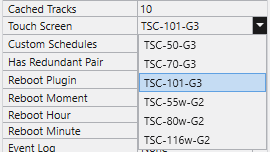
Touch Screen options, choose the TSC panel model the plugin's UI should adapt to.

Adaptive UI for the chosen TSC panel resolution.

The "Touch Screen" property is an enum that lists the supported TSC panel models. "TSC-101-G3" is the default.

This property is part of the plugin's support for an adaptive UI based on a selected TSC panel type. When choosing a certain option from this list, the plugin's UI reconfigures so that it matches the screen resolution for the indicated TSC model.

Hence, when deploying a UCI that is based on the plugin's UI adapted to a certain TSC panel type through the means of this property, the UCI will render perfectly on the TSC model.

09

Custom Schedules

Boolean
Range Yes · No
Default Yes
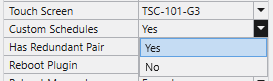
Custom Schedules dropdown, adds schedule builder cards to the Generic UI page.

Adds schedule builder cards to the Generic UI page.

The "Custom Schedules" property is a boolean value that controls whether the plugin integrates schedule builder cards in its 2nd page, called "Generic UI".

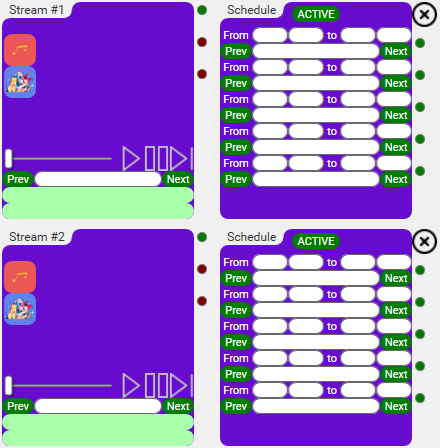
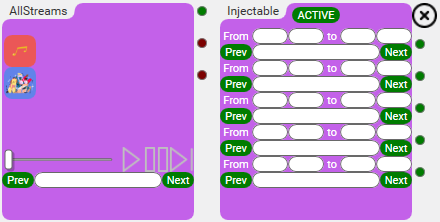
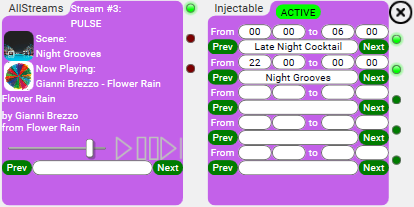
When set to "Yes" (which is also the default option), each stream card from this plugin's page ("Generic UI") gets a dedicated schedule builder card that sits next to it. In addition, an extra schedule builder card called "Injectable" appears next to the "AllStreams" card.

The per-Stream schedule builder card can be used to program up to 5 daily segments (not necessarily contiguous) for each Stream, while the injectable schedule builder card can be used to program up to 5 daily injectables (also not necessarily contiguous) for all Streams.

Per-Stream schedule builder card sitting next to a Stream card on the Generic UI page.
AllStreams card with the Injectable schedule builder beside it.
10

Has Redundant Pair

Boolean
Range Yes · No
Default No
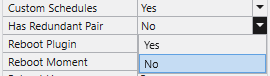
Has Redundant Pair dropdown, set to Yes if a redundant Core is paired.

Indicates whether a redundant Core is paired with the main one.

The "Has Redundant Pair" property is a boolean value with a default option of "No". This instructs the plugin on whether or not there is a redundant Core paired with the main one the plugin will be deployed to.

The difference in behaviour when this is set to "Yes" is that the plugin will not erase the Core and user-related information saved inside the plugin (in a hidden embedded control) when detecting run-time on a different physical Core.

11

Reboot Plugin

Boolean
Range Yes · No
Default Yes
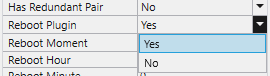
Reboot Plugin dropdown, controls visibility of Reboot Moment / Hour / Minute.

Enables the plugin's periodical reboot.

The "Reboot Plugin" property is a boolean value which enables/disables the plugin's periodical reboot. Its default value is "Yes".

This property also controls the visibility of three other properties, "Reboot Moment", "Reboot Hour" and "Reboot Minute", which appear when "Reboot Plugin" is set to "Yes" and disappear when it is set to "No".

12

Reboot Moment

Enum
Range Frequency-based or specific-day options
Default Everyday
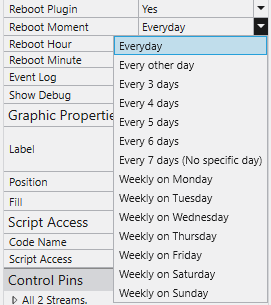
Reboot Moment dropdown, frequency-based or specific-day options.

Controls the day on which the plugin reboots.

The "Reboot Moment" property controls the day when the plugin reboots. "Everyday" is the default.

Frequency-based options describe how often the reboot happens: Everyday, Every other day, Every 3 days, Every 4 days, Every 5 days, Every 6 days, Every 7 days (No specific day).

Specific-day options indicate a particular day on which the reboot should happen: Weekly on Monday, Tuesday, Wednesday, Thursday, Friday, Saturday, or Sunday.

13

Reboot Hour

Number
Range 0 – 23
Default 5
Reboot Hour validation: 0–23.

Hour at which the reboot should occur.

The "Reboot Hour" property is a number between 0 and 23 specifying the hour the reboot should happen at. The default is 5.

14

Reboot Minute

Number
Range 0 – 59
Default 0
Reboot Minute validation: 0–59.

Minute at which the reboot should occur.

The "Reboot Minute" property is a number between 0 and 59 specifying the minute the reboot should happen at. The default is 0.

15

Event Log

Enum
Range None · Error · Warning · Normal
Default None
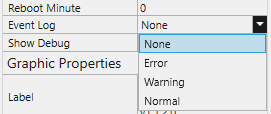
Event Log dropdown, None, Error, Warning, or Normal.

Controls the Event Logger component embedded in the plugin.

The "Event Log" property is an enum consisting of four choices: None, Error, Warning, Normal. "None" is the default. This property controls the Event Logger component embedded in the plugin.

None, no event gets logged in Event Log within Q-SYS Core Manager.

Error, only error events are logged. Example: ACT|E|SPR: Playback failed to start in zone "Room 1st Floor" after 3 recovery attempts.

Warning, both error and warning events are logged. Example warning: ACT|W|ALR: Auto logged in successfully after 8 recovery attempts.

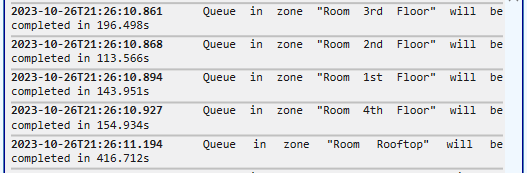
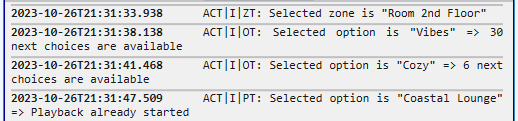
Normal, all events are logged (Error, Warning, and Info). Example info: ACT|I|TR: Auth Tokens will be renewed in 3600s.

Event Log set to Error: only error events are logged.
Event Log set to Warning: error and warning events are logged.
Event Log set to Normal: all events are logged.
16

Show Debug

Boolean
Range Yes · No
Default No
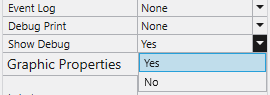
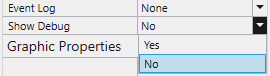
Show Debug toggle, enables the plugin's console.

Enables the plugin's debug console.

The "Show Debug" standard property is a boolean value which enables/disables the plugin's console. Its default value is "No".

For the Activaire Curator for Q-SYS plugin, this property also controls the visibility of another property called "Debug Print", which appears when "Show Debug" is set to "Yes" and disappears when "Show Debug" is set to "No".

Debug Print property visible after enabling Show Debug.
17

Debug Print

Enum
Range None · Tx · Rx · Tx/Rx · Function Calls · Timers · GC · FS · Download Manager · Playback · Flow · All
Default None
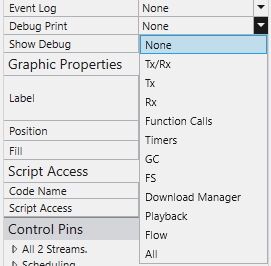
Debug Print options, every available console mode.

Type of data logged to the plugin's console.

The "Debug Print" property controls the type of data that gets logged to the plugin's console. "None" is the default. The available modes are listed below.

ModeLogged data
NoneNo data is logged to the console.
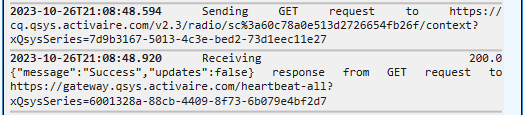
TxOnly data pertaining to outbound network requests gets logged.
RxOnly data on inbound network responses gets logged.
Tx/RxBoth inbound and outbound network communication appears in the console.
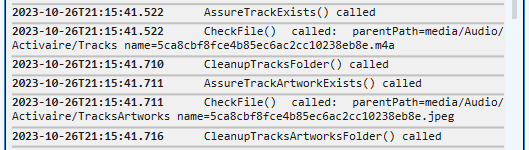
Function CallsThe plugin logs some of the important function calls.
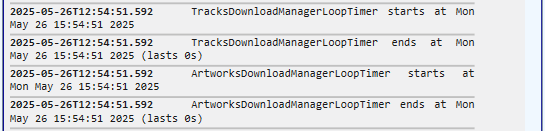
TimersThe plugin logs the start time, end time and total duration for each execution of a timer.
GCGarbage Collector, total memory in use by Lua before and after performing a full GC cycle gets logged to the console.
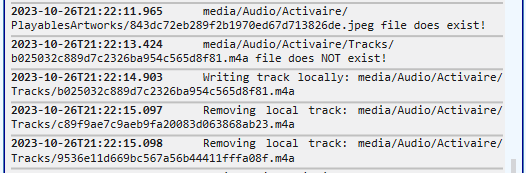
FSFile System, only FS-related plugin actions get logged to the console.
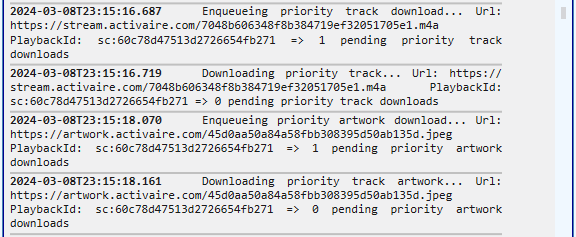
Download ManagerAll enqueueing and downloading actions appear in the console.
PlaybackThe plugin constantly logs the remaining seconds for each active playback session.
FlowAll types of events (error, warning and normal) are logged to the console.
AllAll previously described types of data get logged to the console.
Tx
Tx mode: outbound network requests appear in the console.
Rx
Rx mode: inbound network responses logged.
Tx/Rx
Tx/Rx mode: both inbound and outbound communication.
Function Calls
Function Calls mode: important plugin function calls logged.
Timers
Timers mode: start, end, and total duration of every timer execution.
GC
GC mode: total memory in use by Lua before and after each garbage collection cycle.
FS
FS mode: file system actions (writes, removals, existence checks).
Download Manager
Download Manager mode: track and artwork enqueueing and downloading.
Playback
Playback mode: remaining seconds for each active playback session.
Flow
Flow mode: every event (error, warning, normal) logged to the console.
03Control Pins

Control Pins, screen by screen.

Control Pins are how Q-SYS Designer reads and writes the plugin's state. The pin tree is grouped by main category (per-Stream, AllStreams, Scheduling) and then by screen. Each card below maps to a screen in the plugin's All-Streams-in-one default page.

The plugin has as many main categories of Control Pins as it has Audio Players, plus 2, one for the All-Streams-in-one default page, and one for its Scheduling capabilities.

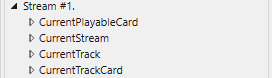
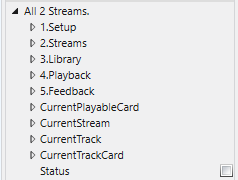
Each Stream main category has 4 secondary categories. The All-Streams-in-one category has 5 extra secondary categories. The Scheduling main category has its own specific secondary categories.

The secondary categories outside the Scheduling main category pertain to the screens that compose the plugin's All-Streams-in-one default page (Setup, Streams, Music Library, Now Playing, Feedback) and to the relevant texts and images shown by the plugin's UI (Current Stream, Current Playable / Track Cards, Current Track Metadata).

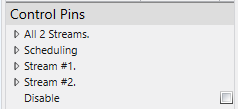
Control Pins panel, main categories per Stream, plus AllStreams and Scheduling.
A single Stream's main category expanded, 4 secondary categories.
All-Streams-in-one main category, 5 extra secondary categories.
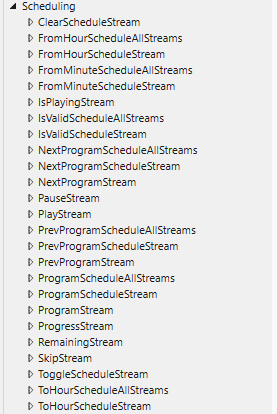
Scheduling main category, first column of secondary categories.
Scheduling main category, second column of secondary categories.
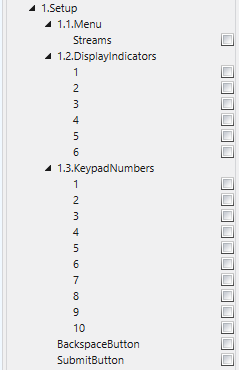
1. Setup screen
Setup screen Control Pins, Menu, DisplayIndicators, KeypadNumbers.
1.1 Menu
Streams
1.2 DisplayIndicators
123456
1.3 KeypadNumbers
12345678910BackspaceButtonSubmitButton
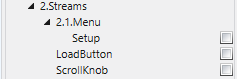
2. Streams screen
Streams screen Control Pins, Setup, LoadButton, ScrollKnob.
2.1 Menu
SetupLoadButtonScrollKnob
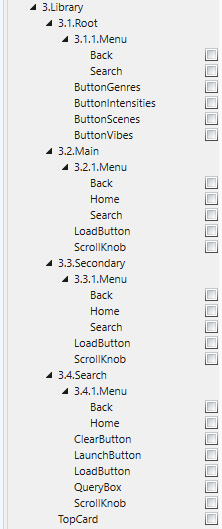
3. Music Library screen
Music Library Control Pins, Root, Main, Secondary, Search subtrees.
3.1 Root → 3.1.1 Menu
BackSearchButtonGenresButtonIntensitiesButtonScenesButtonVibes
3.2 Main → 3.2.1 Menu
BackHomeSearchLoadButtonScrollKnob
3.3 Secondary → 3.3.1 Menu
BackHomeSearchLoadButtonScrollKnob
3.4 Search → 3.4.1 Menu
BackHomeClearButtonLaunchButtonLoadButtonQueryBoxScrollKnobTopCard
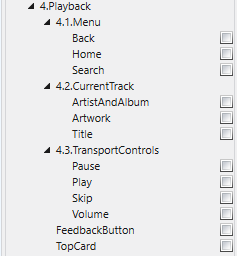
4. Now Playing screen
Now Playing Control Pins, Menu, CurrentTrack, TransportControls.
4.1 Menu
BackHomeSearch
4.2 CurrentTrack
ArtistAndAlbumArtworkTitle
4.3 TransportControls
PausePlaySkipVolumeFeedbackButtonTopCard
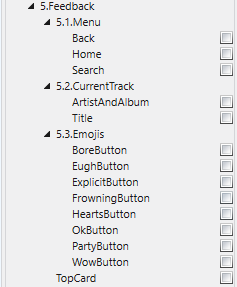
5. Feedback screen
Feedback screen Control Pins, Menu, CurrentTrack, Emojis.
5.1 Menu
BackHomeSearch
5.2 CurrentTrack
ArtistAndAlbumTitle
5.3 Emojis
BoreButtonEughButtonExplicitButtonFrowningButtonHeartsButtonOkButtonPartyButtonWowButtonTopCard
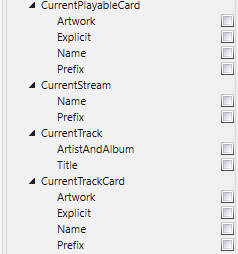
Texts & Images
Texts & Images Control Pins, CurrentPlayableCard, CurrentStream, CurrentTrack, CurrentTrackCard.
CurrentPlayableCard
ArtworkExplicitNamePrefix
CurrentStream
NamePrefix
CurrentTrack
ArtistAndAlbumTitle
CurrentTrackCard
ArtworkExplicitNamePrefix

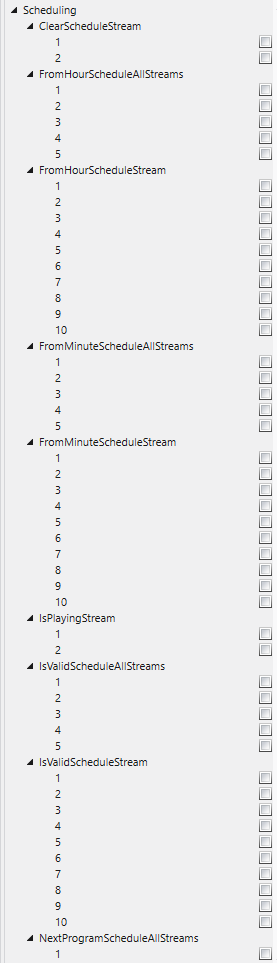
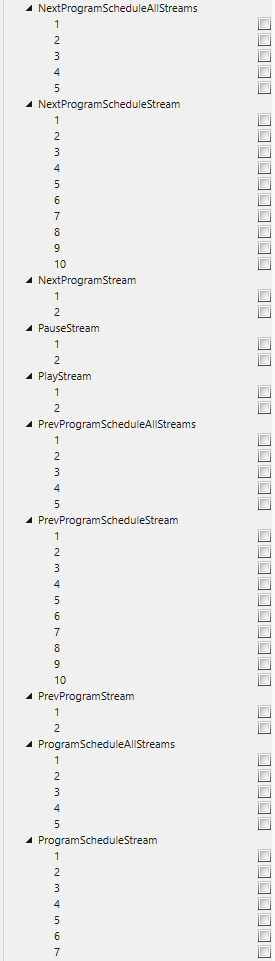
Scheduling pins

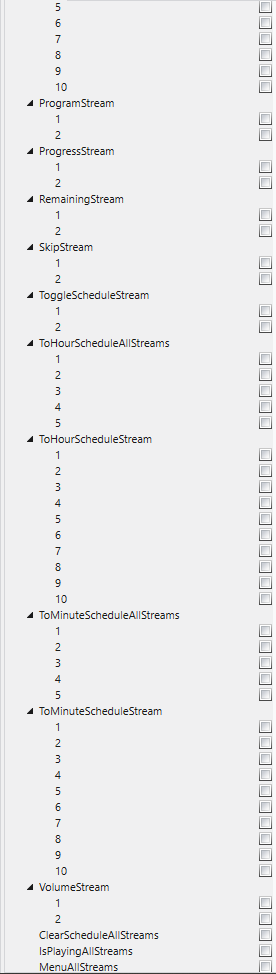
The Scheduling main category secondary categories pertain to the Transport Controls and Playback indicators (Play, Pause, Skip, Volume, IsPlaying, Progress, Remaining) and to the Programming capabilities (Login / Setup, Menu, Search, Program, Schedule Builder).

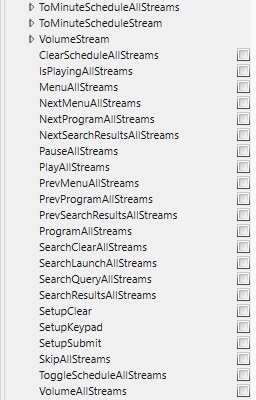
ClearScheduleStreamClearScheduleAllStreamsFromHourScheduleStreamFromHourScheduleAllStreamsFromMinuteScheduleStreamFromMinuteScheduleAllStreamsToHourScheduleStreamToHourScheduleAllStreamsToMinuteScheduleStreamToMinuteScheduleAllStreamsProgramScheduleStreamProgramScheduleAllStreamsNextProgramScheduleStreamNextProgramScheduleAllStreamsPrevProgramScheduleStreamPrevProgramScheduleAllStreamsIsValidScheduleStreamIsValidScheduleAllStreamsToggleScheduleStreamToggleScheduleAllStreamsIsPlayingStreamIsPlayingAllStreamsPlayStreamPlayAllStreamsPauseStreamPauseAllStreamsSkipStreamSkipAllStreamsProgramStreamProgramAllStreamsNextProgramStreamNextProgramAllStreamsPrevProgramStreamPrevProgramAllStreamsProgressStreamRemainingStreamVolumeStreamVolumeAllStreamsMenuAllStreamsNextMenuAllStreamsPrevMenuAllStreamsSearchLaunchAllStreamsSearchClearAllStreamsSearchQueryAllStreamsSearchResultsAllStreamsNextSearchResultsAllStreamsPrevSearchResultsAllStreamsSetupKeypadSetupSubmitSetupClear
Scheduling pins, column 1.
Scheduling pins, column 2.
Scheduling pins, column 3.
04Run Time

All N Streams page.

The plugin's default page, what users see when the design is saved to the Core and run. Twelve numbered behaviors trace the path from splash screen through login, library navigation, playback, and the cleanup flow that runs every 10 minutes.

01Initialization & splash screen

After choosing "Save to Core & Run" from the File menu, the UI of the plugin will render a splash screen during plugin initialization. After initialization completes, the Setup screen is displayed.

Splash screen rendered while the plugin initializes.
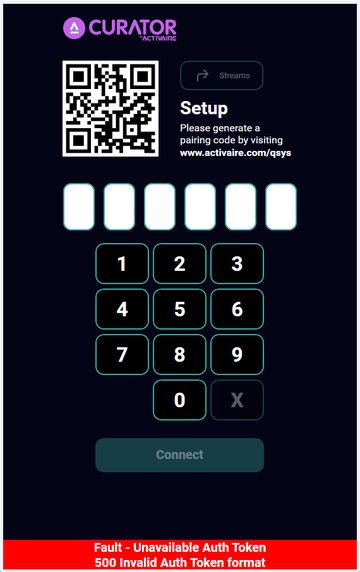
Setup screen, initial state with the Fault status.

02Folder structure on the Core

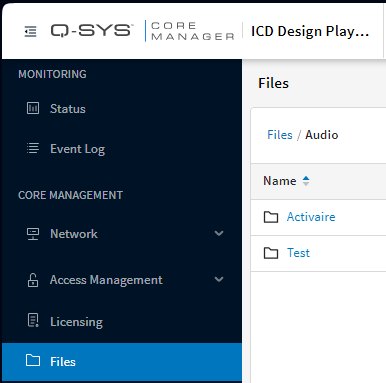
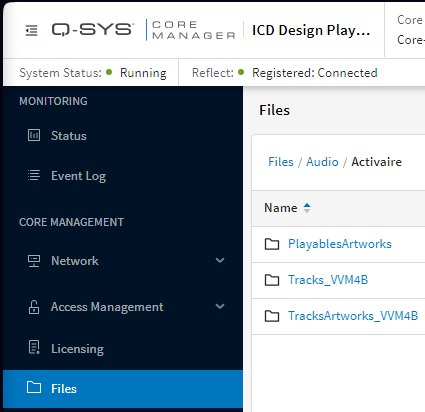
During initialization, the plugin checks if there is a folder called Activaire on the Core's storage, within the Audio root folder. If it does not exist, it is created.

Inside the Activaire folder, the plugin then checks for three particular folders, creating any that are missing:

  • PlayablesArtworksCommon to all plugin instances on the Core.
  • Tracks_<unique-suffix>Per-instance track storage.
  • TracksArtworks_<unique-suffix>Per-instance track artwork storage.

<unique-suffix> is a unique alphanumeric string of 5 characters that is generated by each plugin instance dragged & dropped to a Schematic Page from the Schematic Elements.

This accommodates situations where either a design file contains more than one plugin instance, or there isn't one single design file deployed to a particular Core. Because the tracks and artwork folders are periodically cleaned up by the plugin, unique folders prevent one instance from erroneously cleaning up tracks in use by another. The PlayablesArtworks folder is shared across all plugin instances.

Q-SYS Core Manager → Files → Audio with the Activaire folder created.
Inside the Activaire folder: PlayablesArtworks, Tracks_<suffix>, TracksArtworks_<suffix>.
Inside the Activaire folder: PlayablesArtworks, Tracks_, TracksArtworks_.

03Authentication token & first login

The Status control initially reads Fault - Unavailable Auth Token because the plugin does not hold any authentication token when first loaded onto a Core, so the auto login cannot be performed.

After the user has manually logged in at least once, the plugin obtains a valid authentication token from the remote backend and stores it securely inside a private embedded component, enabling auto login at plugin start.

04Pin code entry

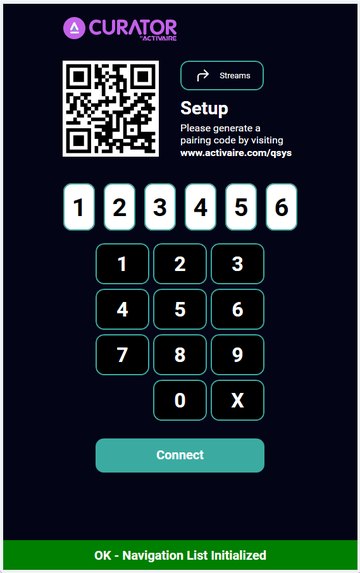
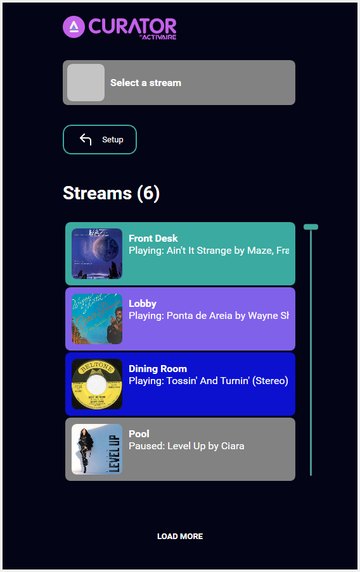
After the user obtains a Pin Code from Activaire and types it on the plugin's keypad, the Connect button becomes enabled. Clicking it logs in the user and takes them to the Streams screen.

Pin codes are generated at activaire.com/qsys.

Pin Code being entered on the keypad. Tap Connect to log in.
Streams screen, scrollable list of available Streams after login.

05Login sequence (Plugin Status events)

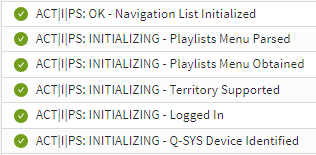
During logging in there is a series of statuses the plugin goes through, but because they happen rapidly in succession the user does not always see them. If the Event Log property is set to Normal, Plugin Status events similar to the following are encountered in the Event Log within Q-SYS Core Manager:

  1. ACT|I|PS: INITIALIZING - Q-SYS Device IdentifiedCore is identified.
  2. ACT|I|PS: INITIALIZING - Logged InLogin completes.
  3. ACT|I|PS: INITIALIZING - Territory SupportedPlugin's territory is validated.
  4. ACT|I|PS: INITIALIZING - Playlists Menu ObtainedMusic menu is fetched from backend.
  5. ACT|I|PS: INITIALIZING - Playlists Menu ParsedMusic menu is parsed.
  6. ACT|I|PS: OK - Navigation List InitializedUI is initialized; plugin is ready for use.
Plugin Status events emitted during login (Event Log set to Normal).

06Streams page & audio player matching

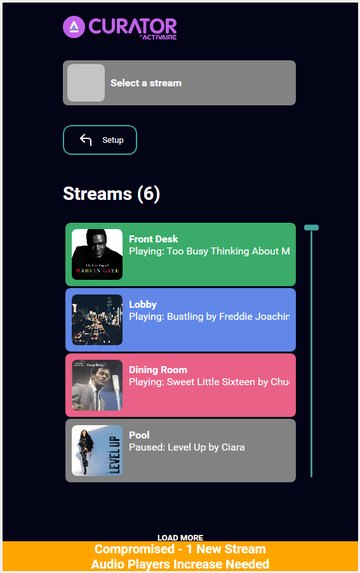
The Streams page contains a scrollable list of all Streams the user has access to, limited by the configured number of Audio Players via the Audio Players property.

If the user's Activaire account is set to have 7 Streams, but the plugin's Audio Players property is set to 6, the plugin will only show 6 Streams and will set the Status control to Compromised - 1 New Stream Audio Players Increase Needed.

In the reciprocal case, when the plugin has more Audio Player components than the user's Activaire account has Streams, the plugin simply uses only the number of Audio Player components it needs, leaving the rest unused.

The plugin instantly detects runtime changes in Stream count, refreshing the user's content and informing them through the same Status control as well as via corresponding Event Log messages.

Compromised status, the user's account has more Streams than the plugin's Audio Players.
1 Zone Less, too many playbacks. Stopping a playback.
1 Zone Less, removing a Zone.
Compromised, 1 New Zone, Audio Players Increase Needed.
1 New Zone, Stream count refreshed at run time.

07Music Library navigation

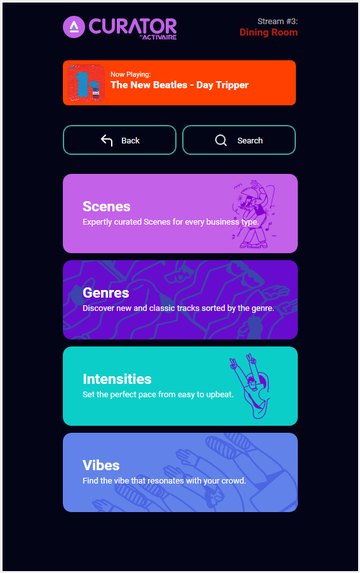
When the user explores a Stream, they see the Music Library root entries: Scenes, Genres, Intensities and Vibes.

In the top-right corner the current Stream's index and name are shown. Slightly lower, the top card displays the currently playing song, if any.
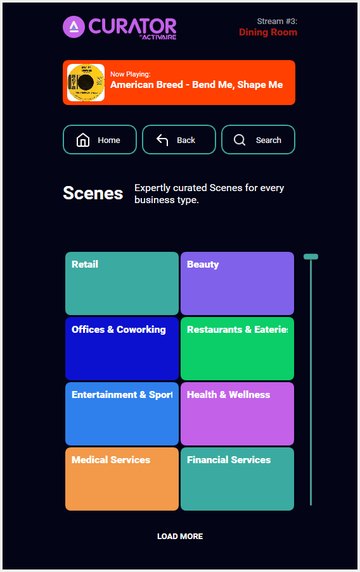
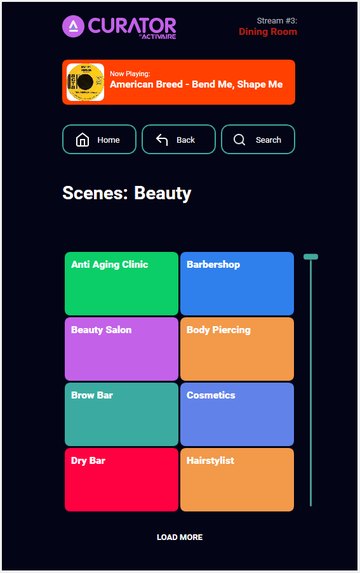
Exploring a root entry such as Scenes reveals its main categories. Drilling further into a category such as Beauty reveals the secondary categories within it.

Three menu buttons, Home, Back and Search, are used to navigate to the Music Library's root, to step one level back, and to access search.

The scroll control on the right and the LOAD MORE button at the bottom can both be used to see all available items on the current Music Library level. Both controls hide automatically when there are fewer items than available places, and the LOAD MORE button also hides when the scroll thumb reaches the lowest position.

Music Library root, Scenes, Genres, Intensities, Vibes.
Scenes main categories, Retail, Beauty, Offices, Restaurants, etc.
Scenes: Beauty, secondary categories like Anti Aging Clinic, Barbershop, Brow Bar.

08Playlists, scenes & background artwork downloads

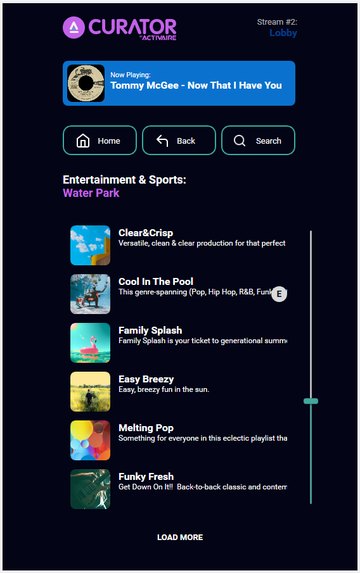
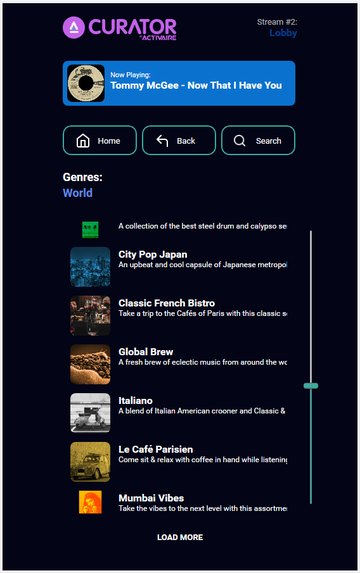
When exploring a main category of Genres, Intensities or Vibes, or a secondary category of Scenes, the user sees the Activaire playlists and scenes within that category.

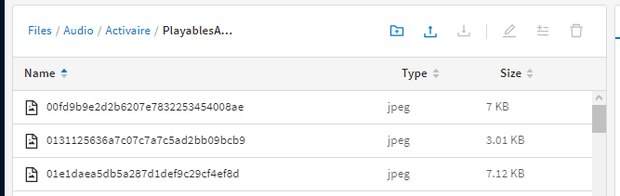
In the background, the plugin downloads the artworks of the playlists and scenes to the PlayablesArtworks folder.

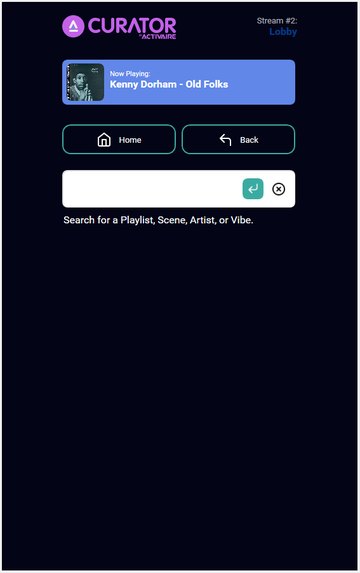
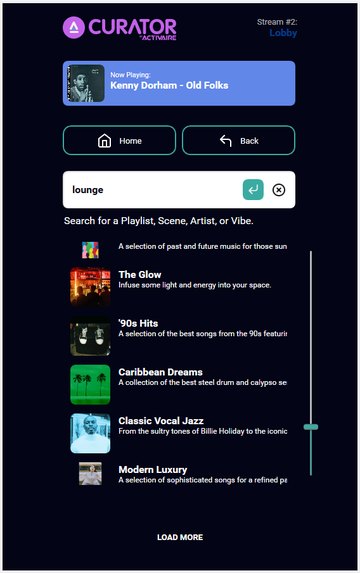
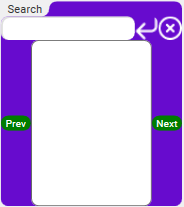
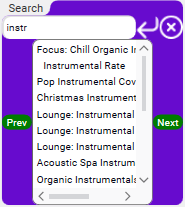
After clicking the Search menu button, typing a query and hitting enter, the user sees a list of playlists and scenes whose artworks are also automatically downloaded in the background, if not already present.

Entertainment & Sports → Water Park playlists.
Genres → World playlists.
Search screen with the cursor in the query box.
Search results for "lounge", playlists, scenes, artists, vibes.
PlayablesArtworks folder filling with downloaded artwork files.

09Track download on tap

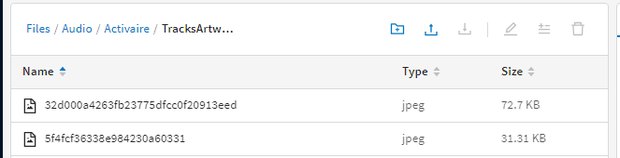
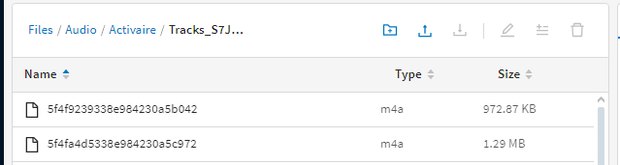
When the user taps on any playlist or scene, the plugin instantly communicates with the Music Manager, demanding songs from the selected playable, downloading them to the tracks folder, and also downloading their artworks to the tracks-artworks folder.

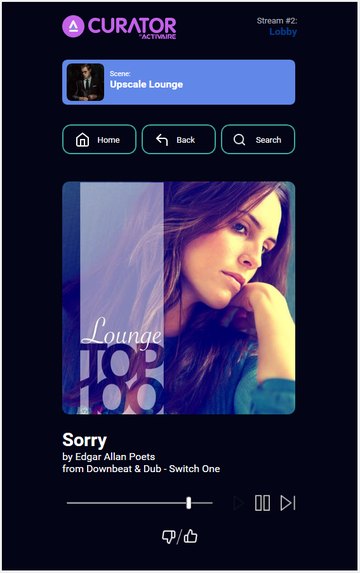
After the first song's .mp3 / .m4a and .jpeg files are written to the Core's storage, the plugin starts playback and takes the user to the Now Playing screen, changing the top card to display details about the currently playing playlist or scene.

Now Playing, Lounge Top 100 with track artwork, transport controls, and feedback button.
Tracks_<suffix> folder filling with downloaded .m4a song files.
Tracks_ folder filling with downloaded .m4a song files.
TracksArtworks_<suffix> folder filling with downloaded .jpeg artwork files.
TracksArtworks_ folder filling with downloaded .jpeg artwork files.

10Feedback screen

From the Now Playing screen, the bottom-most control takes the user to the Feedback screen, which lets them react to the currently playing track.

If the chosen reaction is one from the top half (positive), the track continues to play and the reaction button is highlighted.

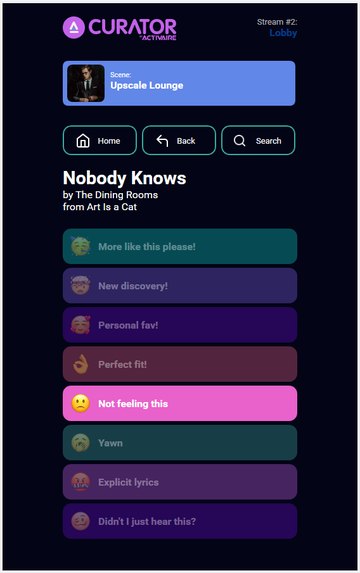
If the user reacts negatively (one of the bottom-half reactions), the track is skipped immediately.

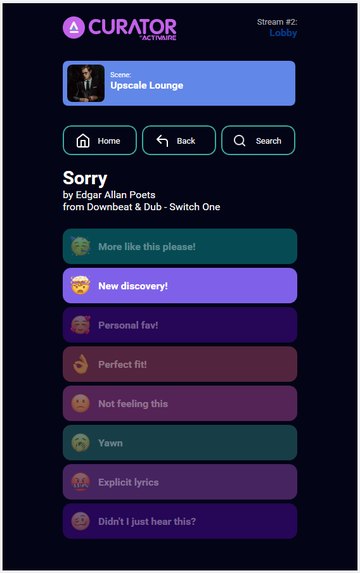
Feedback screen with a positive reaction selected, playback continues.
Feedback screen with a negative reaction, track is skipped immediately.

11Cleanup flow (every 10 minutes)

After a track is over or skipped, the first run of the plugin's cleanup flow, which runs every 10 minutes, will remove both its corresponding files: the .mp3 / .m4a song file and the .jpeg artwork file.

Every 10 minutes, each active Stream has at most Cached Tracks + 1 song files and song artwork files locally on the Core's storage.

12Continuous communication

The plugin continuously communicates with the Music Manager to grab the next songs and to inform it of playback actions like Skip, Pause or Play. The Music Manager informs the plugin of how many Skips per hour are left.

Another continuous channel runs between the plugin and the remote backend: the plugin notifies the backend of volume changes and song reactions, while the backend communicates remote actions performed in Curator on the web back to the plugin so they are reflected on the plugin side as well.

05Run Time

Generic UI page.

The plugin's second page exposes the entire control surface as cards arranged in a fixed grid. Each card embeds the controls for a single piece of the plugin's functionality, ready to be incorporated into a custom UCI with your own theme, layout, and visibility logic.

01Page overview

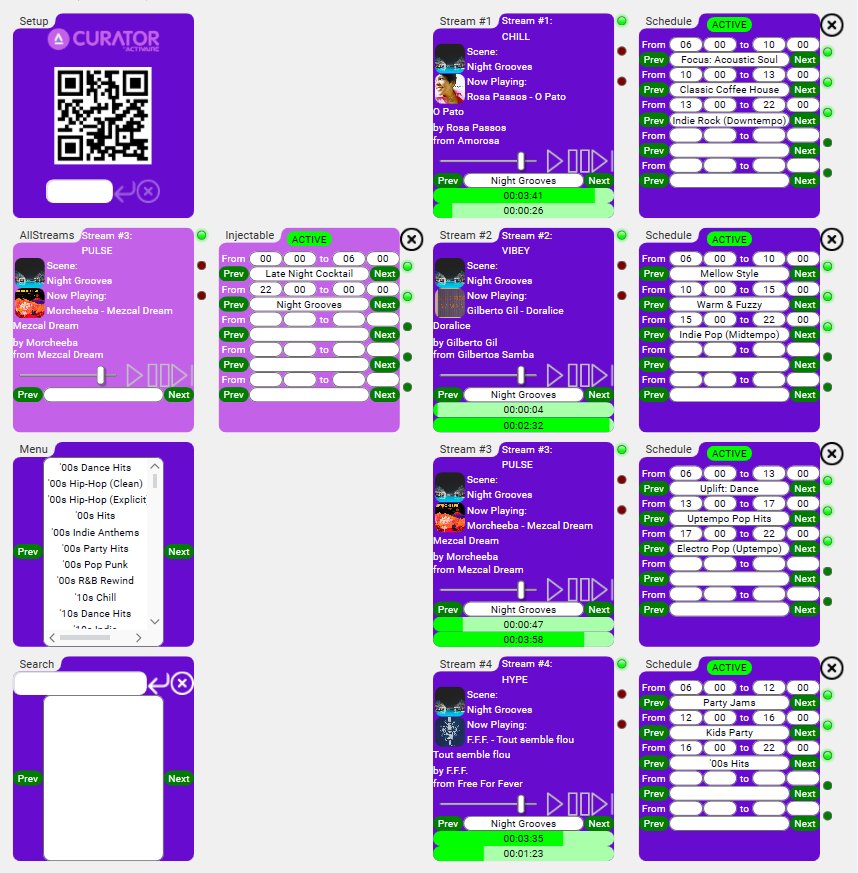
The Generic UI page contains cards grouped per functionality, that can be incorporated into a custom UCI. The style and visibility of the controls present on this page do not change at run time, so they are fit for building a custom UCI with a certain theme and structure (including layers and visibility rules).

The controls included on this page cover all the functionalities of the plugin.

Generic UI page, every plugin function exposed as a card in a fixed grid.

02Setup card

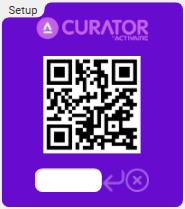
The top-left card is the Setup card, which can be used to programmatically introduce the PIN code and then hit the arrow button for the plugin to automatically log in with a certain PIN, via script or manual action.

It also includes a clear button that erases the text box, and a QR code that links to the Q-SYS section on the Activaire site.

Setup card, text box for the PIN code, arrow to connect, clear button, QR code.

03AllStreams card & Injectable card

The two cards underneath the Setup card are the AllStreams card and the Injectable card. These cards are unique within this page; each one embeds dedicated controls for a specific part or flow of the plugin.

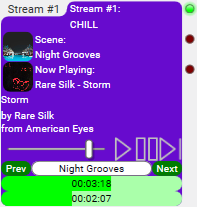
The AllStreams card includes metadata for the Stream that was last explored via the plugin's All N Streams page, transport controls, and a paginated drop-down list of stations for controlling all Streams at once.

The Injectable card includes a specific schedule builder that, when active, can program up to 5 different segments to be played by all the streams at the same time.

AllStreams card and Injectable schedule builder, sitting side-by-side.

04Menu card

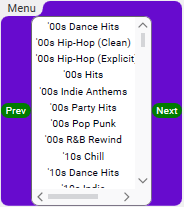
The card under the AllStreams and Injectable cards is the Menu card, which holds the flat, alphabetically sorted, paginated list of the programs that form the entire Music Library the user has access to in the All N Streams page.

This list is read-only, selecting any of its items doesn't do anything. However, the items of this list form the default list of choices for all the paginated drop-down lists of stations from the other cards.

Menu card, read-only flat list of every program in the user's Music Library.

06Stream cards (odd columns from column 3)

Starting from the 3rd column onwards, all odd columns are populated with Stream cards which, similarly to the AllStreams card, include metadata, transport controls and paginated drop-down list of stations for the Stream indicated in the card header.

These Stream cards also include two playback indicators, one for the progress of the currently playing track, and one for the remaining time.

Metadata shown:

  • The name of the Stream
  • The type of the program (playlist / scene), the name and artwork of it, and whether it's explicit
  • The state of playback (playing / paused), the title, artist, album and artwork of the track, and explicit flag

Transport controls include the ability to play, pause, skip and change volume. The paginated drop-down list of stations allows for easy selection of the desired program.

Stream card, metadata, transport controls, station selector, progress and remaining time.

07Schedule cards (even columns from column 4)

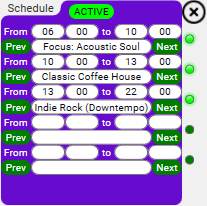
Starting from the 4th column onwards, all even columns are populated with Schedule cards which, similarly to the Injectable card, include a schedule builder that, when active, can program up to 5 different segments to be played by the Stream indicated in the leftward card header.

The schedule builder contains a toggle in the top part, which controls whether the schedule is active or not. For edits done to an active schedule, a toggle off and then a toggle on is needed for the plugin to apply the edit. In the top-right corner there is a clear button which resets all 5 segments to their initial state.

Each segment is defined by a starting hour and minute and an ending hour and minute. These values are set from two pairs of drop-down lists. A segment also has an assigned program, selected via the included paginated drop-down list of stations.

After all 5 values are set (start hour, start minute, end hour, end minute, and program), an LED indicator on the right side of the card lights up if that segment is valid, meaning its end time is bigger than its start time (with the exception of when the end time is midnight) and it does not overlap with another segment.

Schedule card, toggle, 5 segments with start/end times and station, validity LEDs.
06Event Log Reference

Event message format.

Events logged into Q-SYS Core Manager follow a strict format. Use the codes below to triage what's being reported when the Event Log property is set to Error, Warning, or Normal.

ACT|<severity>|<class>: <detail>

<detail> contains custom information associated with the event, describing it.

Severity codes

CodeSeverity
EError
WWarning
IInfo

Class codes

CodeClass
ALRAuto login recovery
CRCookie renewal
FCFolders cleanup
FSFile system
IOInternet outage
IRInternet restored
LCRLoad container recovery
MPMenu parse
OTOption tap
PMRPause music recovery
PRPlugin reboot
PSPlugin status
PTPlayable tap
QCQueue completed
RARemote action
REQSend request
RESResponse handler
SPRStart playback recovery
TRToken renewal
ZTZone tap
07Troubleshooting

Troubleshooting & warnings.

When something doesn't behave as expected, this is the playbook: check the Event Log, escalate to full Debug Print, capture the console, and contact support if needed. Disk-space math is here too, the plugin has clear, predictable storage requirements.

Internet outage behaviour

To work properly, the plugin needs access to the internet. In case of an internet outage, the music in a Stream will not stop, it will loop after all the cached tracks for that Stream are consumed.

If internet is restored before the loop happens, that Stream's music will not replay.

If the music replayed due to such an internet outage, when the internet is restored the music will continue its normal sequence, except when a skip is ordered. In that case, instead of performing a simple skip, the plugin will skip to the end of the group of cached tracks that were already played, assuring a fresh new segment.

Disk space requirements

Disk space scales with two variables, the Cached Tracks count N and the number of active Streams Z, plus a fixed ~20 MB allowance for playable artworks. Use the formulas to project storage for your specific deployment, or read off the table for common combinations.

For .mp3

  • (~ 10 KB per playable artwork) × (~ 2000 playables) ⇒ ~ 20 MB
  • (~ 50 KB per track artwork) × ((N + 1) tracks) × (Z active Streams) ⇒ ~ 0.05 × (N + 1) × Z MB
  • (~ 5 MB per track) × ((N + 1) tracks) × (Z active Streams) ⇒ ~ 5 × (N + 1) × Z MB
  • Total: ~ (5.05 × (N + 1) × Z + 20) MB

For .m4a

  • (~ 10 KB per playable artwork) × (~ 2000 playables) ⇒ ~ 20 MB
  • (~ 50 KB per track artwork) × ((N + 1) tracks) × (Z active Streams) ⇒ ~ 0.05 × (N + 1) × Z MB
  • (~ 1.5 MB per track) × ((N + 1) tracks) × (Z active Streams) ⇒ ~ 1.5 × (N + 1) × Z MB
  • Total: ~ (1.55 × (N + 1) × Z + 20) MB
Cached Tracks (N) Active Streams (Z) .mp3 storage .m4a storage
22≈ 50.3 MB≈ 29.3 MB
210≈ 171.5 MB≈ 66.5 MB
232≈ 504.8 MB≈ 168.8 MB
102≈ 131.1 MB≈ 54.1 MB
1010≈ 575.5 MB≈ 190.5 MB
1032≈ 1.8 GB≈ 565.6 MB
2002≈ 2.05 GB≈ 643.1 MB
20010≈ 10.17 GB≈ 3.1 GB
20032≈ 32.5 GB≈ 10 GB

General troubleshooting strategy

1

Set Event Log to Normal and reproduce

Set the Event Log plugin property to Normal, then use the plugin again and reproduce the problem. Inspect the Event Log within Q-SYS Core Manager for any errors or warnings. In the majority of cases, the detailed messages of these events point clearly to the culprit.

2

Enable full Debug Print and capture the console

If still in doubt, set the Debug Print plugin property to All, then try to reproduce the problem once more while autosaving the console output to a file. After the problem occurs, inspect both the Event Log within Q-SYS Core Manager and the autosaved file for any signs of the problem. With this extra level of information, the issue should be closed in the majority of cases.

3

Contact Activaire support

If still no success, export the relevant Event Log entries to a .csv file and, together with the autosaved file from the previous step, send them to , explaining the situation.

Contact support

For escalation, package up your evidence, exported Event Log entries (.csv) and the autosaved console output, and email Activaire support with a clear description of what was happening when the issue occurred.